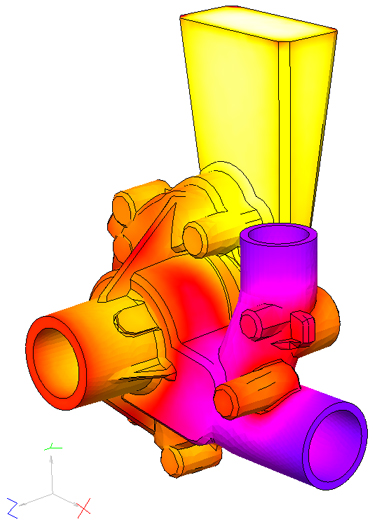
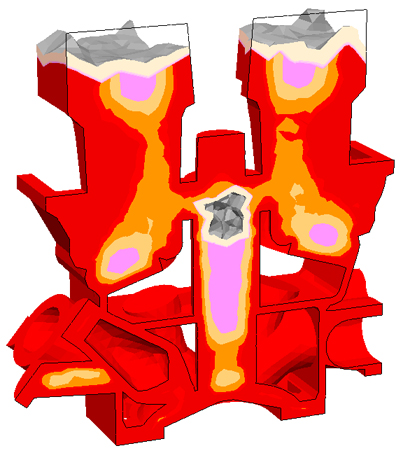
Casting Simulation Software POLIGONSOFT is designed to solve problems of foundry production. POLIGONSOFT is a professional tool for the foundry technologist for predicting and analyzing the causes of casting defects at the stage of designing a casting technology and selecting a gating-feeding system. POLIGONSOFT helps to create and/or optimize some of the most important stages of the technological process on a digital casting prototype, before designing and manufacturing a casting mold, which reduces the cost of experimentation, the time to refine the foundry technology and the cost of the final product.
POLIGONSOFT is a package of mathematical models that allow to simulate the filling of a mold with a melt, heat transfer (conductivity, convection and radiation), solidification of a casting, formation of shrinkage defects (cavities, macro- and microporosity), stresses, deformations and much more. Beside this POLIGONSOFT has the special possibilities to simulate the directional solidification, continuous casting, press molding, cyclic processes, criterion analysis of the received results, etc.
|
|
а) |
b) |
Simulation of the most physical processes is performed on the base of finite – element method (FEM) that allows using the most adequate physical and geometrical models (GM).
POLIGONSOFT consists of the following modules, combined in the single shell:
POLIGONSOFT structure can be presented in the schematic view (see the picture below). Previously generated finite-element (FE) meshes of the casting bodies are loaded to the preprocessor Master to prepare the simulation the GM. In case of the simulation of the complex radiation heat exchange the GM is treated in the Tracing module. Mold filling simulation is performed in the solver Euler. Then the thermal and shrinkage porosity fields are simulated in Fourier solver. Stress simulation of the cast is performed in Hooke solver. Necessary properties and simulation conditions for all three solvers are loaded from databases.The results obtained in the Fourier solver can be used in the Macrostructure and Heat Treatment solvers.
The results of the simulation are viewed in the postprocessors Mirage and Mirage-L. The additional processing of calculation fields can be performed using functions and algorithms (from the library or created by the user) in the Criterion module.
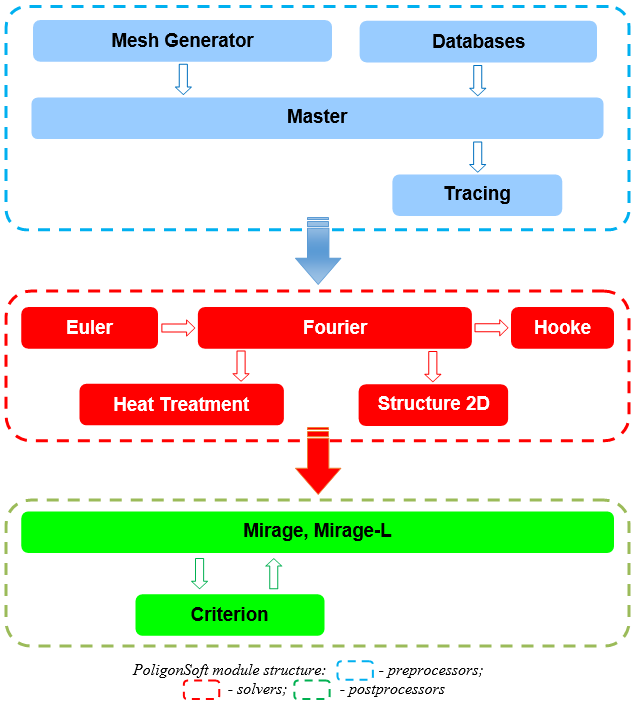
POLIGONSOFT solvers have the following capabilities (see detailed description in the corresponding chapters):
POLIGONSOFT licenses system solvers, some modules and functions of preprocessors and postprocessors. Currently, the following modules are protected from illegal use: Euler, Fourier, Hooke, Trace, Macrostructure, Heat Treatment and Criterion. The license allows you to run the purchased versions of the solvers and all their younger versions. When updating the POLIGONSOFT to a newer version, you must update the license (see the next section).
Master, Mirage, Mirage-L modules and mesh generator are not licensed.
Starting with version 2024.0, POLIGONSOFT supports two licensing systems: CodeMeter and Guardant. When installing the software, the user specifies which licensing system is planned to be used (see the figure below) and all its components are installed together with POLIGONSOFT. Most often, the license is written into the hardware dongle, which is supplied with the software distribution. The Guardant system allows you to use both dongles and software licenses. Before starting work, you should insert the dongle into the USB port of the computer and wait for the dongle to be activated. Without the dongle, the protected POLIGONSOFT modules either do not start or work in demo mode.
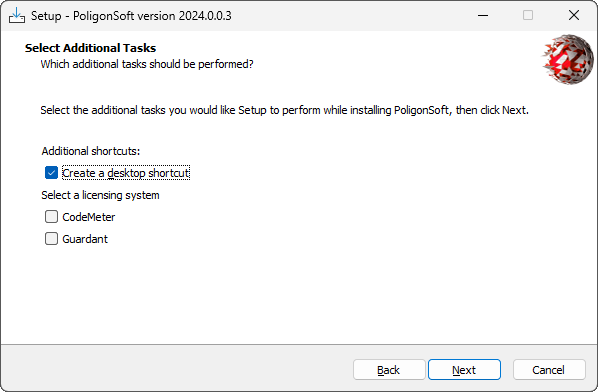
For more information on working with each licensing system, please read the relevant sections below.
The CodeMeter license recorded in the dongle can be updated or changed. This is done through a request file that the user creates on the computer where the CodeMeter dongle driver is installed. To create a license update / change request file, follow the steps below.
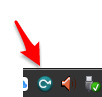
When the dongle is inserted, an icon is visible in the tray (see the figure below), with can open (one click of the left mouse button) the CodeMeter Control Center. You can also do this through the menu Start→All Programs→CodeMeter→CodeMeter Control Center.
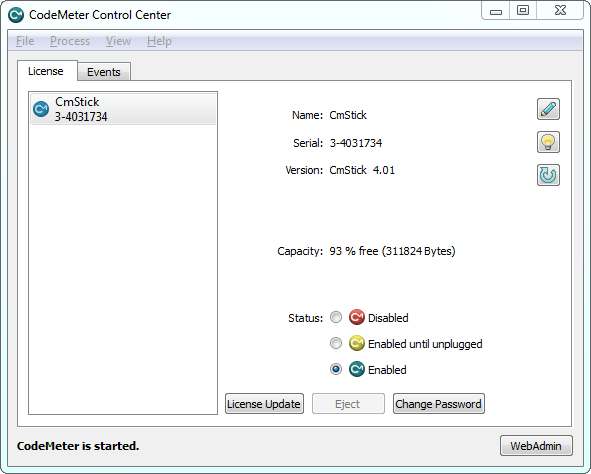
The CodeMeter Control Center window contains information about the dongles inserted into this computer. On the left side of the window there is a table, which lists all detected dongles and their serial numbers (see the figure below).
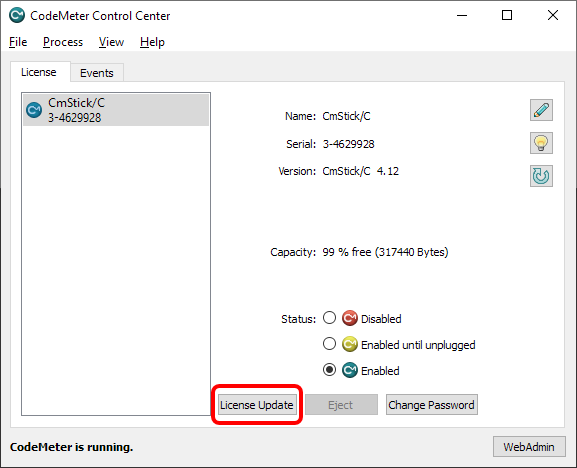
Click the License Update button. The CodeMeter Field Activation Service assistant will be launched (see the figure below).
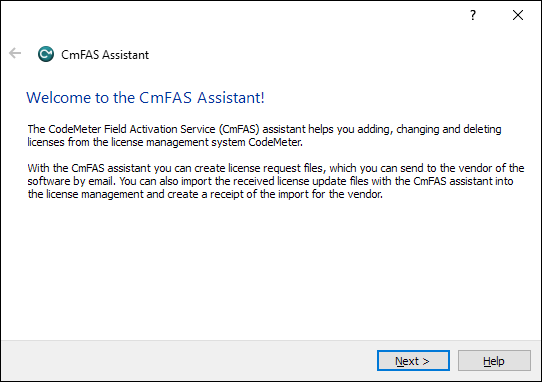
Click the Next button to go to the next step and select the required operation (see the figure below).
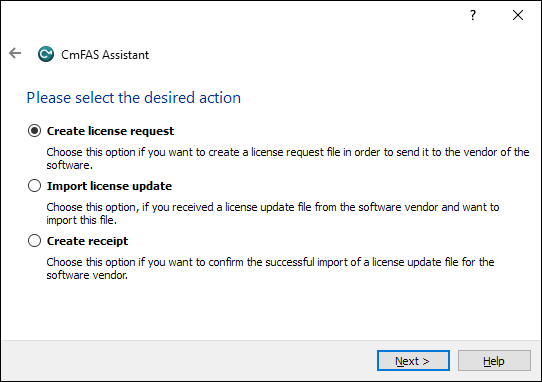
Select the Create license request item, click the Next button. At the next stage, you can select a command to request a license (see the figure below).
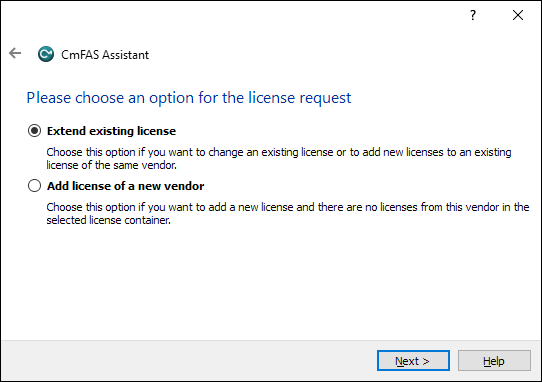
Select the Extend existing license item and click the "Next" button to go to the next step (see the figure below).
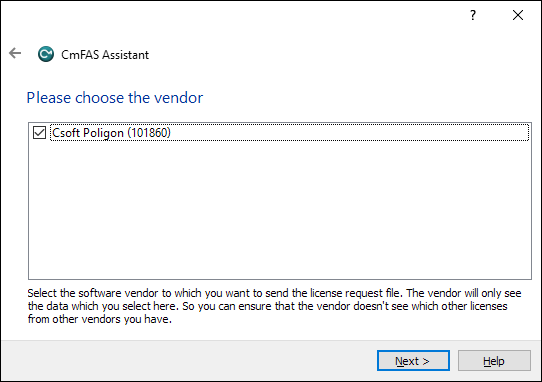
Make sure that the CSoft Poligon (101860) line is checked as on figure above and click the Next button to go to the next step and specify the name of the license request file (see the figure below).
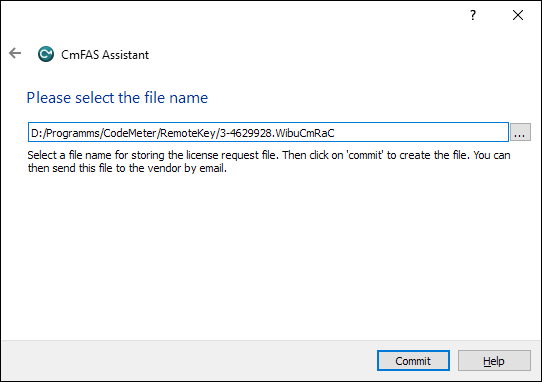
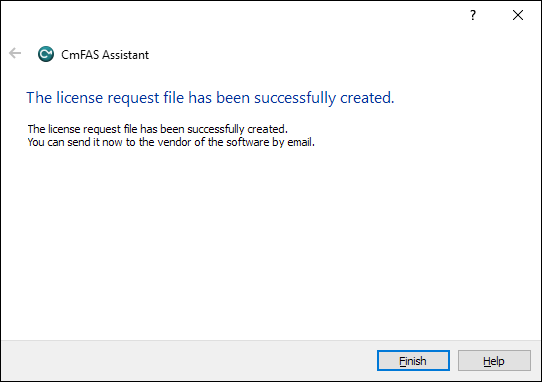
Select the location on the disk where the license request file will be written and click the Commit button. When the file is written, you can close the assistant window, the Finish button (see Fig. Below).
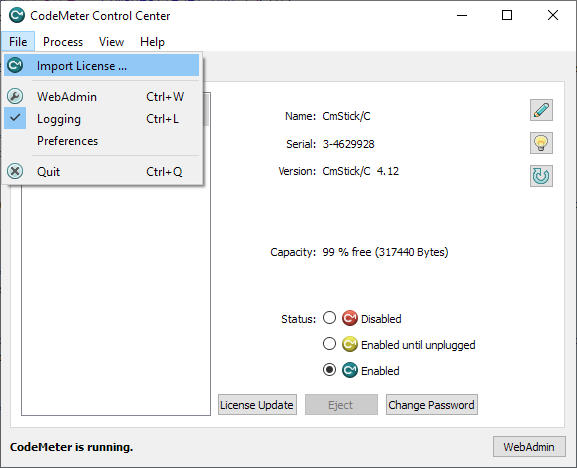
The generated xxx.WibuCmRaC file , where xxx is the dongle serial number, should be sent to the contact person from the developer or software vendor. In response, you will receive a license update file with the extension .WibuCmRaU. To update the license in the dongle, you need to launch the CodeMeter Control Center, call the Import License ... command from the File menu (see figure below). Load the received file and the license in the dongle will be updated.
The network license works in the following way. The dongle is inserted into any network PC on which the dongle driver has been installed from the POLIGONSOFT disc. In case if the license in the dongle allows access to the dongle by the local network, the POLIGONSOFT can be started on any PC in this network. To be able to do it you need to install the program itself and the dongle driver. Then the settings of the protection system parameters are changed on each PC.
When the dongle is inserted the symbol appears in the tray (see the picture below) with the help of which you can open CodeMeter Control Center (one click mouse left button). You can also do it by clicking the menu Start → All programs → CodeMeter → CodeMeter Control Center.
The CodeMeter Control Center window contains the information about the dongles inserted into the exact computer. The window from the left side contains the table in which all determined dongles and their serial numbers are listed (see the picture below).
To start network access configuration to the dongle, go to the File menu and select WebAdmin. This opens the "default" Internet browser where the network interface for CodeMeter services administration is loaded (see the figure below).
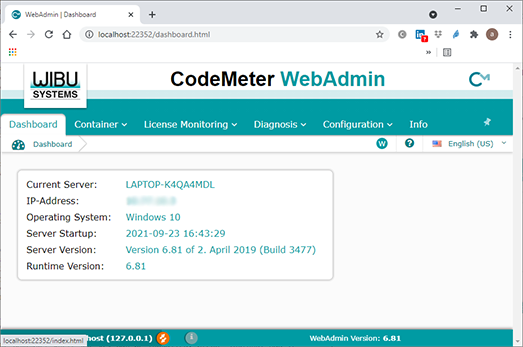
Move to the Configuration menu.
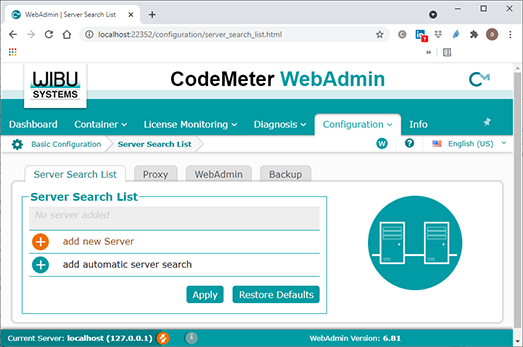
There are several tabs in the Configuration menu. By default, the first tab Server Search List will be opened. Here you can set a list of computers where POLIGONSOFT will look for a dongle when launching licensed modules (Euler, Fourier, etc.). Add to this list the computer or computers where dongle is installed. To create a list of protection servers, click add new Server (see figure below).
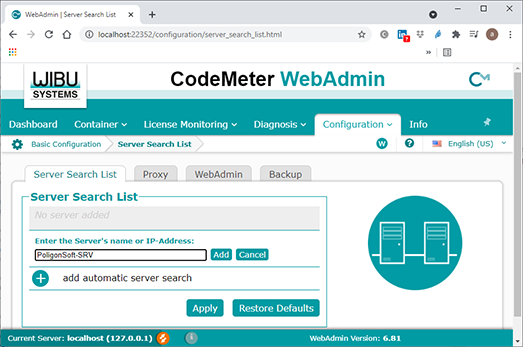
Enter the network name of the computer where the dongle can be installed and press Add button. The computer will be added to the list. Repeat the same procedure for entering all necessary computers (see the picture below). At the end press Apply button.
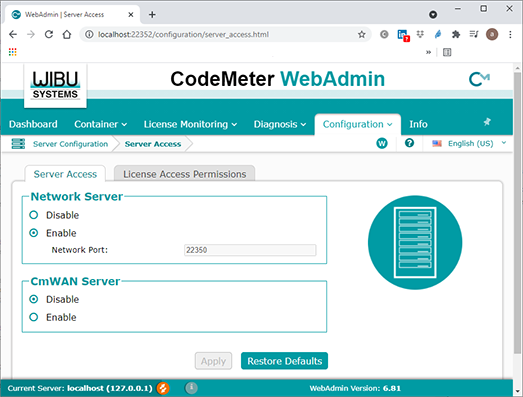
Move to the Configuration→Server →Server Access menu.
On the Server Access tab select Enable in Network Server group (see the figure below). At the end press Apply button.
Now when the licensed modules started the CodeMeter will search for the dongle first on the local computer, then on all computers from the given list and then on all computers of the local network.
Upon request, it is possible to connect to an external license server, which is located on the side of the POLIGONSOFT developer. This is possible, for example, during trial period, to perform test calculations.
To connect on the user's side, please configure the network license as described in the Setting Up a Network License section.The external IP address of the license server should be entered, in the network administration interface of CodeMeter services (WebAdmin) in the Configuration menu, instead of the name of the local server. The IP address of the license server is reported by the POLIGONSOFT local vendor.
After configuration on the user's side, computer data is transferred to the local vendor to allow access to the license on the server side.
The license recorded in the dongle can be updated or changed. This is done through a request file that the user creates on the computer where the Guardant dongle driver and the special Guardant License Wizard application are installed, which is installed together with the dongle driver during the installation of POLIGONSOFT. To create a request file for updating/changing the license, follow the steps described below.
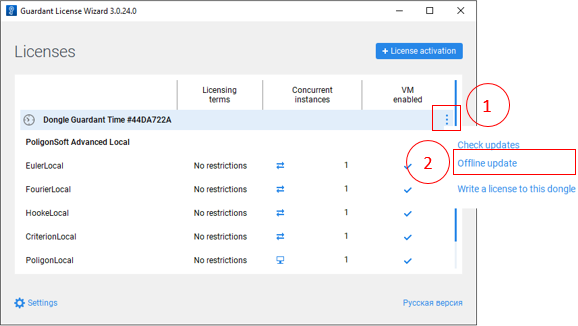
After inserting the dongle, launch the Guardant License Wizard application. This can be done via the Windows menu Start→All Programs→POLIGONSOFT xxx.x→license_wizard.exe. The application window will open (see the figure below), where you have to perform the following actions (the items correspond to the numbers in the figure):
At the next stage (see the figure below), perform the following actions (the points correspond to the numbers in the figure):
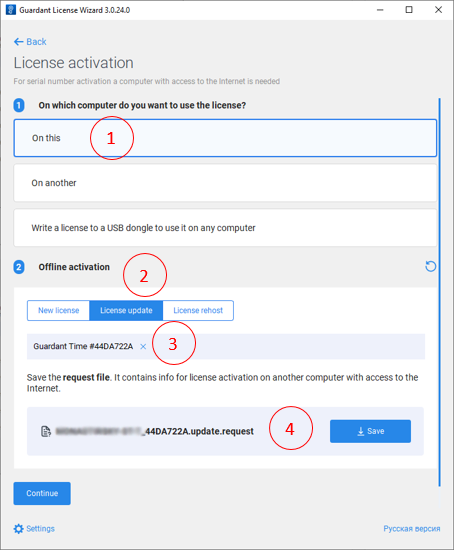
The generated file xxx_yyy_update.request, where xxx is the computer name and yyy is the dongle number, have be sent to the contact person from the developer or software supplier. In response, you will receive a license update file with the .license extension.
All the following operations are performed with the hardware dongle inserted.
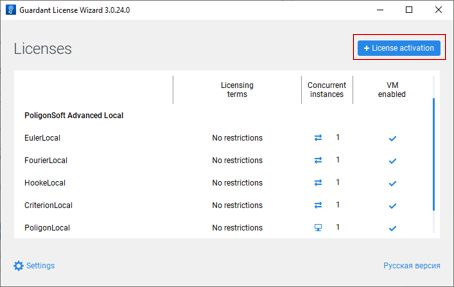
To update the dongle license, you need to run the Guardant License Wizard and click the +License activation button (see the figure below).
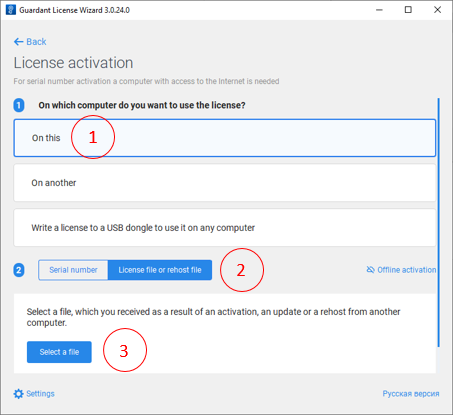
At the next stage (see the figure below), perform the following actions (the points correspond to the numbers in the figure):
The updated license will be loaded into dongle.


.svg)
.svg)
.svg)

.svg)